-
19 min read
Azure cost optimization: The levers that reduce cloud spend

TL;DR
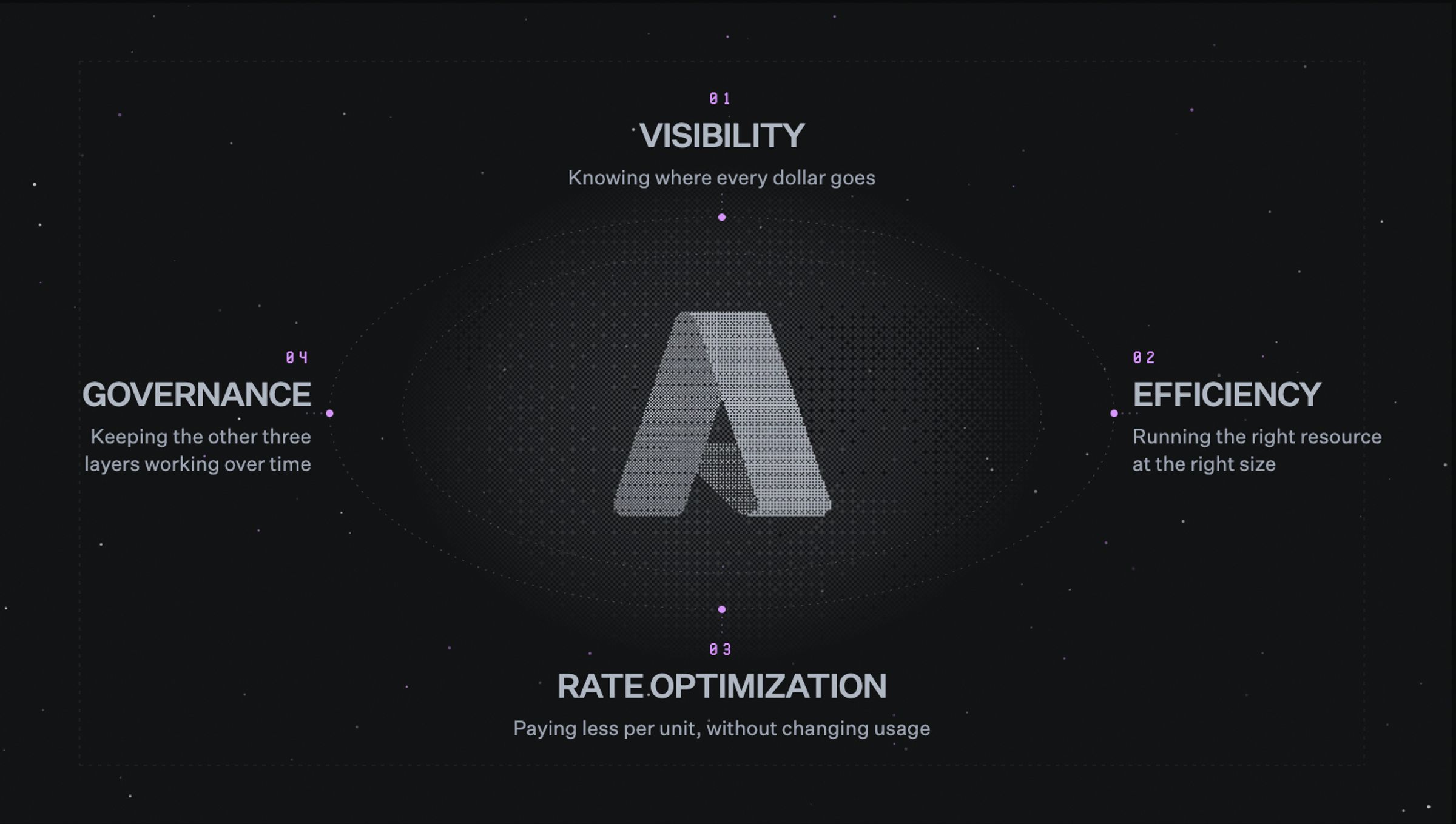
- Azure cost optimization works across four layers: visibility, efficiency, rate optimization, and governance.
- Native tools provide the data and controls, but teams still need to act on them consistently.
- Start by rightsizing before buying commitments, then cover only usage expected to remain stable.
- Azure Hybrid Benefit and Spot Virtual Machines can lower rates further for eligible workloads.
- Common savings opportunities include idle resources, incomplete allocation, oversized compute, and storage left on higher-cost tiers.
- North.cloud helps teams catch cost changes sooner, allocate spend accurately, and keep commitment coverage aligned as usage shifts.
Microsoft Azure is the second-largest cloud platform in the world, and its market share continues to grow. Azure cost optimization means reducing spend without compromising performance, reliability, or capacity.
The problem is not a shortage of tools. Azure Cost Management, Azure Advisor, and budget alerts are built into the platform. The real gap sits between seeing the data and acting on it every week.
That disconnect rarely comes from bad intent, but from a structural problem. Workloads shift, teams grow, and commitments expire faster than anyone can track by hand.
Reducing Azure spend takes levers across pricing, architecture, licensing, and governance. This post covers the highest-impact ones across visibility, efficiency, rate optimization, and governance.
The four layers of Azure cost optimization
Optimizing your Azure cloud costs is not a one-time cleanup project. Costs shift as workloads scale, teams change, and new services get adopted. The work has to run continuously across four layers: visibility, efficiency, rate optimization, and governance.
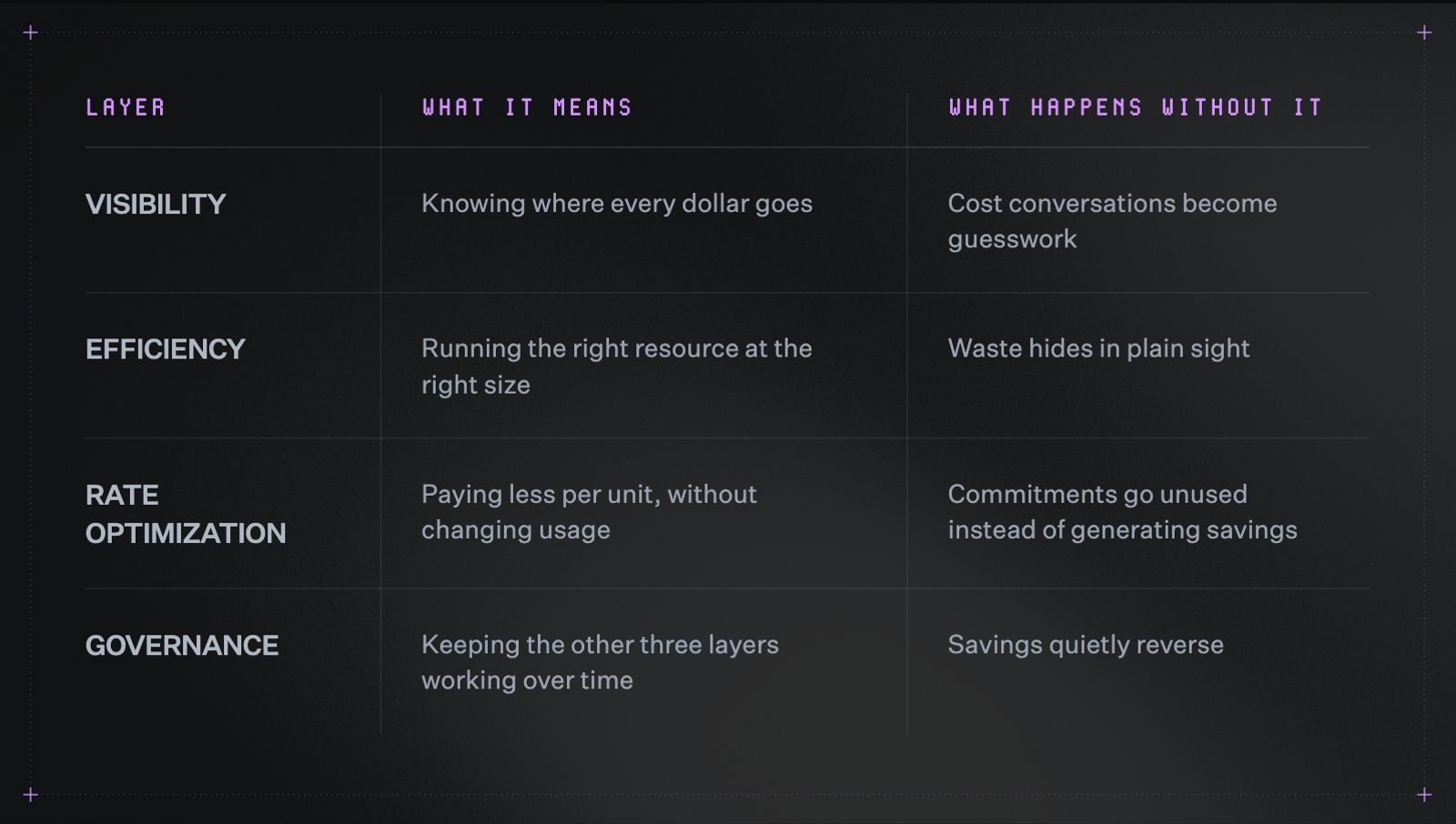
Azure cost optimization runs across four layers, and skipping any one of them shows up later as wasted spend.
Visibility
Visibility means knowing where every dollar goes. That includes the resource, team, and service behind each charge.
Think of it like a shared household credit card with no itemized statement. Everyone agrees to cut spending, but nobody can point to what to cut. Similarly, itemizing the bill will come first, before anyone touches a budget.
Azure has some native tools that make this layer possible:
- Microsoft Cost Management handles cost analysis and budgets
- Azure Advisor recommends rightsizing and cleanup
- Azure Monitor supplies the performance data behind those recommendations
These tools are free and generate real signals. Still, someone has to review each alert and act on each recommendation.
Efficiency
Efficiency means running the right resource, at the right size, for its workload.
A resource can look overprovisioned and still be sized correctly, depending on which number you check.
For example, a virtual machine (VM) sized for a rare traffic spike shows low utilization most of the year. That average makes it look wasteful, though the spike behind it may justify the size. The correct read depends on the number you’re checking.
Our guide to rightsizing without the risk goes deeper on separating the two, and when being overprovisioned might be the right choice.
That distinction can get harder across a typical Azure environment because efficiency works differently for each service type:
- VMs
- Azure SQL
- Azure Cosmos DB
- Azure App Services
- Storage
Each service prices differently and reaches capacity limits differently. This means efficiency work must be tailored by service, rather than applied as a one blanket exercise.
Rate optimization
Rate optimization means paying less per unit of compute or storage, without changing what you use.
Azure makes this possible by offering discounted rates alongside its standard on-demand pricing, for teams willing to commit to certain usage levels. That gap between the two rates is where some of the fastest savings in this post come from. It shows up in three places:
- Commitments, including Reservations and Savings Plans
- Licensing benefits through Azure Hybrid Benefit
- Discount programs and negotiated rates
The catch is that rate optimization only works if the layers before it are solid. Commit to a workload that later gets rightsized or shut down, and part of that commitment goes unused.
There's a second variable worth knowing before you commit to anything: your billing relationship. Enterprise Agreement, Microsoft Customer Agreement, Cloud Solution Provider, and Pay-As-You-Go accounts each come with different purchasing options. Knowing which one applies to you shapes how an efficient commitment strategy can actually look like.
Governance
Governance means keeping the first three layers working after the initial setup.
Most teams can set these practices up without much trouble. What's harder is keeping them alive months later, after the initial push has faded and attention has moved elsewhere.
Rightsizing, tagging cleanup, and commitment purchases each require focused effort. Keeping them going takes a different kind of effort, and that's usually where the savings start to slip.
A few patterns show up again and again:
- New resources get provisioned at default sizes
- Tagging policies get skipped under deadline pressure
- Scheduled shutdowns get disabled and never restored
- Commitments go unreviewed as usage shifts
None of these on their own does much damage. Left unchecked over months, though, they add up to real, avoidable spend.
Azure Commitments and rate optimization: When to lock in, and to what
Azure prices compute on-demand by default. You pay for what you use, with no long-term obligation or discount. That flexibility is convenient, but it is also the most expensive way to run a stable, predictable workload.
Commitments exist to close that gap. In exchange for committing to usage or hourly spend over a fixed term, Azure charges a lower rate.
The idea is simple: usage you can predict should not cost the same as usage you cannot.
However, a commitment only pays off if the usage behind it holds. Commit to the wrong workload or term, and the discount becomes a fixed cost you pay whether you use it or not.
Azure offers several ways to reduce rates:
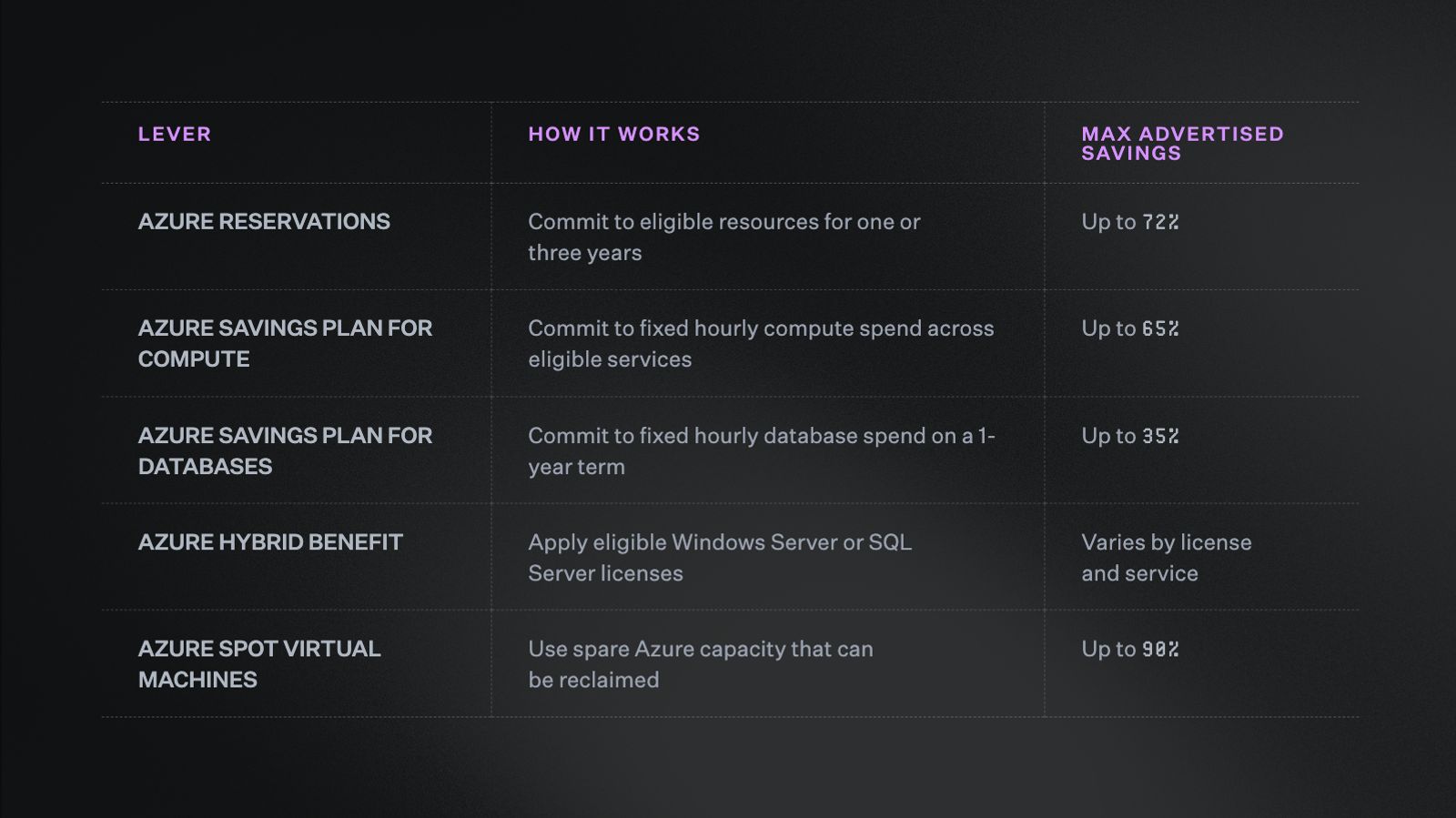
Four ways to lower your Azure rate, each with a different tradeoff between savings and commitment.
The sections below explain when each lever makes sense and how to avoid overcommitting.
Azure Reservations vs. Savings Plans
When it's time to commit to compute, Azure gives you two main paths: Reservations and Savings Plans (SPs). Which one fits depends on how steady your usage is, and whether it's tied to specific resources or spread across your environment.
Reservations work by matching a discount to specific eligible resources. Commit for one or three years, and savings can reach up to 72% over pay-as-you-go pricing.
The tradeoff is specificity. A reservation only pays off as long as the resource it's tied to stays roughly the same. Azure allows some reservations to be exchanged within the same product family, but workload changes can still lower how much of that discount you're actually using.
SPs work differently. Instead of reserving a specific resource, you commit to a fixed hourly spend, and the discount applies automatically to eligible usage across services and regions.
Azure SPs for compute offer savings of up to 65% on select services, available in one-year and three-year terms. Azure also offers SPs for databases, covering select database services with savings up to 35% on a one-year term.
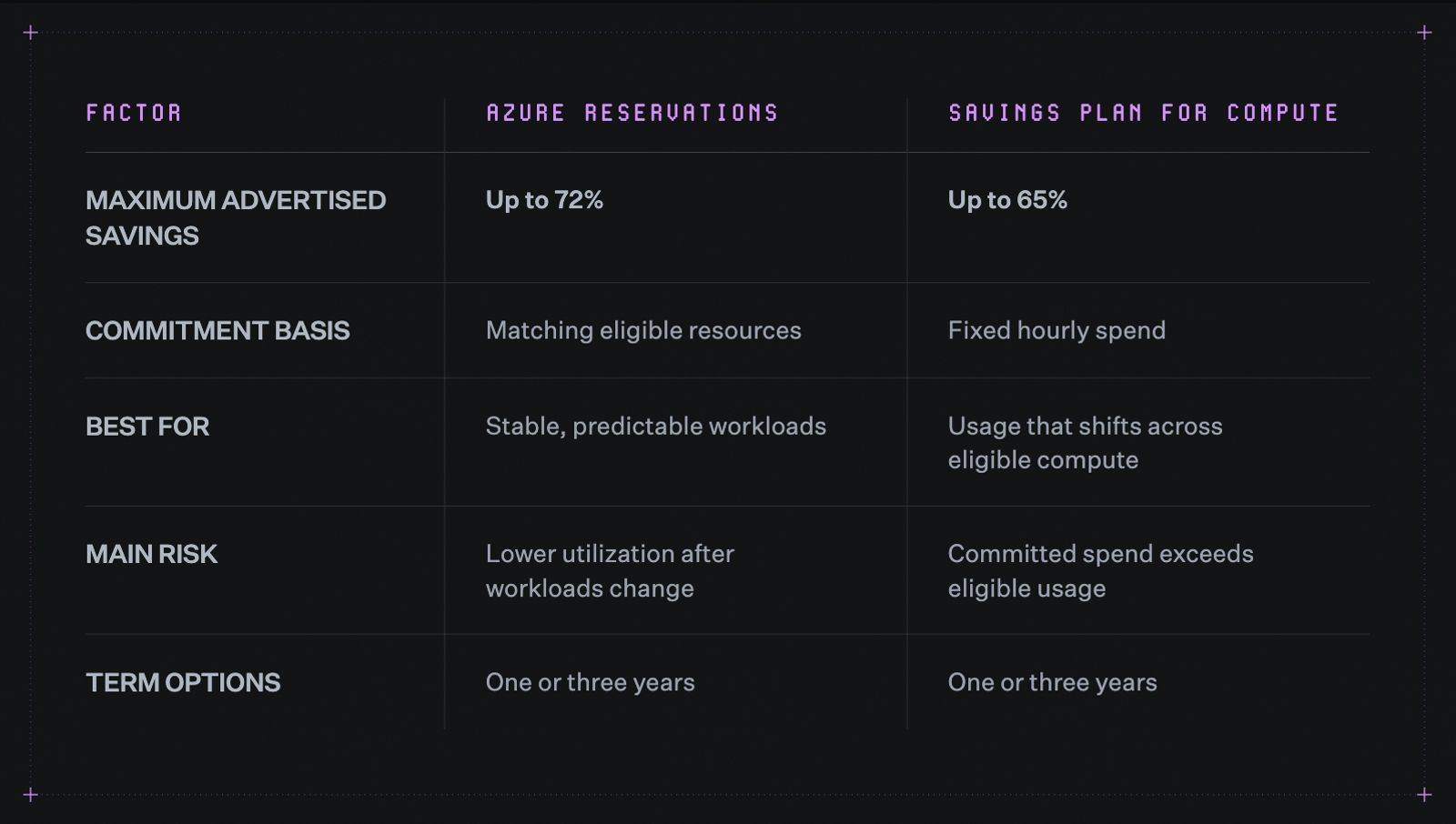
Reservations and Savings Plans both cut Azure compute costs, but they commit to different things.
The two don't have to compete for the same dollars, either. Reservations and SPs can work together, and a good starting point is splitting your compute into two groups:
- Steady usage that stays predictable month over month
- Variable usage that shifts across services, regions, or resource types
Reservations are a better fit for the steady group, since they need that stability to pay off. SPs are a better fit for the variable group, since the discount follows the spend rather than a fixed resource.
My tip is to leave some usage on demand, too. That gives you room to rightsize or change your architecture without a commitment getting in the way. Where the right balance sits depends on your workload stability, how confident you are in your forecasts, and what coverage you already have.
Tracking reservation utilization, savings plan utilization, and effective savings rate is how you find out whether that balance is actually working.
Azure Hybrid Benefit
Azure Hybrid Benefit works differently than the levers above it. Rather than a commitment, it's a licensing benefit that lets eligible organizations apply existing Windows Server or SQL Server licenses to Azure.
Eligibility usually comes down to active Software Assurance or a qualifying subscription, and the savings themselves vary by license, service, region, and deployment.
Azure advertises savings of up to 40% for some Windows Server scenarios, with larger combined savings possible when this benefit is paired with reservations or other offers.
This lever tends to get missed for an organizational reason rather than a technical one. Procurement manages the license agreements, while engineering provisions the Azure resources, so neither side always has full visibility into what the other is doing.
A simple license inventory can close that gap. It should:
- Document eligible Windows Server and SQL Server licenses
- Map them to current Azure deployments
- Confirm Software Assurance or subscription eligibility
- Track which licenses are already assigned
Going through that process helps keep eligible licenses from sitting unused while Azure charges the full software rate.
Azure Spot Virtual Machines
Azure Spot VMs offer discounts of up to 90% against pay-as-you-go pricing. They use spare capacity, which means Azure can reclaim them when demand increases.
That tradeoff makes Spot suitable for some workloads and risky for others.
Good fits include:
- Batch processing
- Continuous integration and continuous delivery pipelines
- Development and test environments
- Stateless services
- Flexible distributed workloads
Poor fits include:
- Production databases
- Stateful applications without failover
- Workloads that cannot restart safely
- Services requiring guaranteed capacity
A few configuration choices can improve resilience:
- Distribute workloads across eligible VM sizes or regions
- Design jobs to checkpoint progress and restart safely
- Use scale sets or Azure Compute Fleet where appropriate
- Set a maximum price when tighter cost control is required
Spot works best as a complement to committed and on-demand capacity, not a replacement for either.
Azure cost optimization in practice
The four layers above explain what to optimize. In practice, teams usually find savings in a few recurring areas. Each one also has a way of quietly reversing when treated as a one-time project.
1. Centralize spend and enforce tags
Centralizing spend across subscriptions and tenants comes before anything else on this list.
Start with billing. Bring subscriptions into the broadest available billing scope your agreement supports in Azure Cost Management + Billing.
Then set up views. Segment cost analysis by subscription, resource group, and tag. The goal is one dataset the whole team works from, not separate portals to reconcile.
Tagging is what makes that data usable. Without consistent tags, spend lands in an "unallocated" bucket that no one owns.
- Enforce required tags (team, environment, project) through Azure Policy
- Block resource provisioning that skips required tags
- Set budget alerts at the subscription and resource group level, routed to the team that owns the spend
For a deeper walkthrough of getting tagging right, read our guide to cloud tagging for modern teams.
Where it drifts
Tagging policies get skipped under deadline pressure, understandably. But this leaves teams with retroactive tagging that is slower and less reliable than enforcing it at deployment.
A recurring check on tag coverage catches drift before it becomes a full re-tagging project.
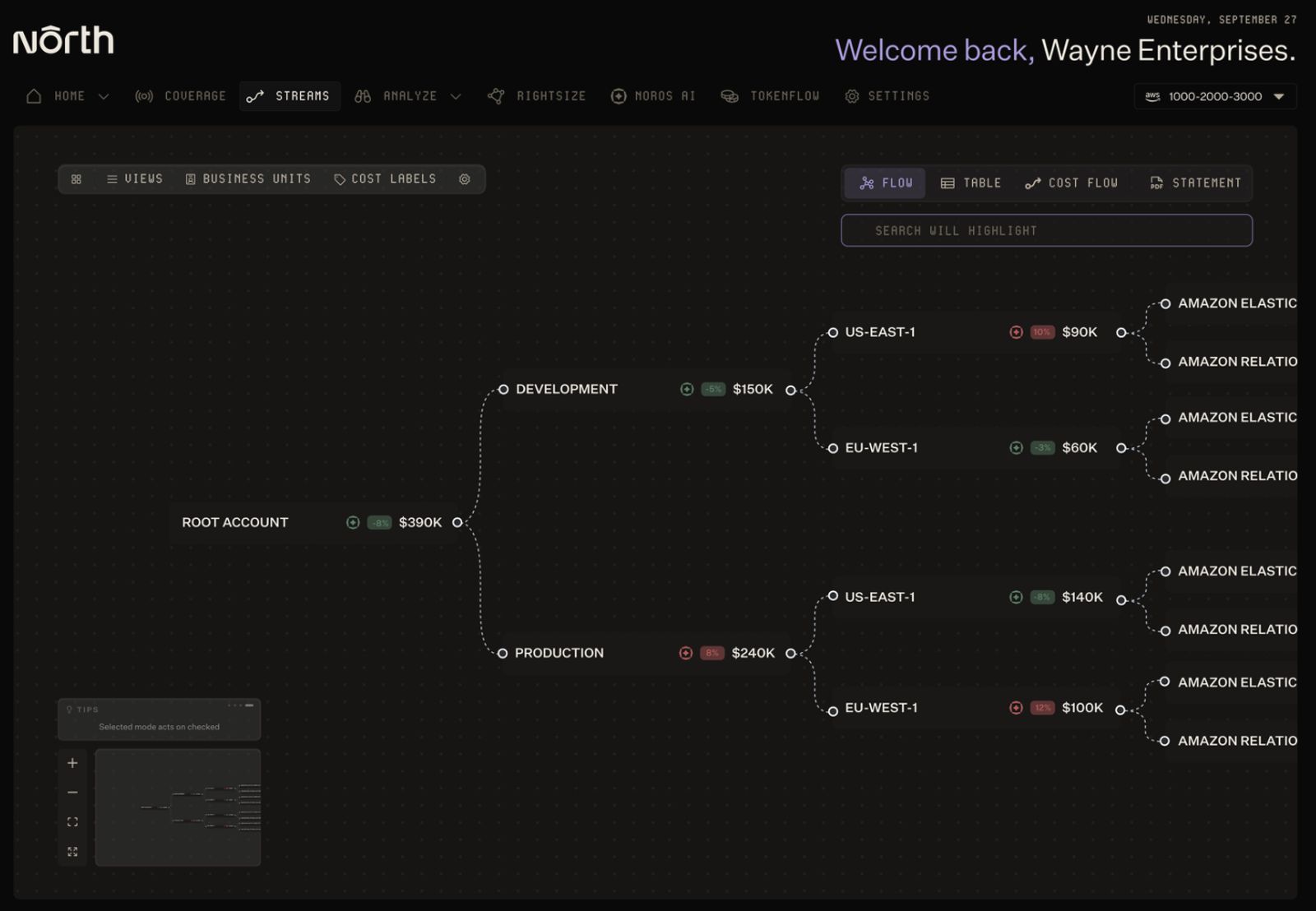
A view of Coststreams broken down by team and service inside the North app.
Pro-tip: When complete tagging is not realistic, North’s Coststreams can allocate spend using business and infrastructure context beyond tags. That keeps costs mapped to teams, projects, and customers, even when metadata is incomplete.
2. Rightsize compute continuously
Azure Advisor, the platform's built-in recommendation engine, surfaces underutilized VMs using recent performance and usage data. The recommendations themselves are useful, but acting on them regularly matters more.
Make a habit of reviewing them often, since sizing doesn't stay accurate for long. A VM sized correctly three months ago may already be underutilized, simply because workloads shift and sizing needs to keep up.
Rightsizing isn't always about going smaller, either. Sometimes a workload needs a different type of VM, one built for compute-heavy tasks, rather than a smaller version of the same type.
Moving a batch-processing job to a compute-optimized VM can cost less and perform better than simply downsizing within the same family.
Before resizing anything, build confidence with data from Azure Monitor, which collects performance and usage metrics across your environment:
- Use Azure Monitor metrics over a 30- to 90-day window
- Capture full usage cycles, including month-end processing, weekly peaks, and seasonal spikes
- Avoid short observation windows, since a resize based on a quiet week can cause an outage during the next busy one
3. Shut down what is not in use
Non-production environments are one of the most reliable sources of recoverable Azure spend. Dev, test, and staging instances often run around the clock, even though nobody's touching them nights or weekends.
Automate the shutdown
Manually stopping and starting VMs works for a handful of instances, but it doesn't scale beyond that. This kind of work needs to run on a schedule instead.
Azure gives you a few ways to do it:
- Azure Automation runbooks for scripted start and stop schedules
- Azure DevTest Labs for managing development and test resources
- The built-in start/stop VMs during off-hours solution
Scheduling development VMs around working hours can remove a large share of their monthly runtime. The exact savings depend on VM pricing, working hours, and any related resources that keep generating charges regardless.
Move eligible workloads to Dev/Test subscriptions
Scheduling isn't the only lever here. Non-production workloads running under standard subscriptions can also be missing out on pricing and licensing benefits available through Azure Dev/Test offers, which can include:
- Discounted VM rates for eligible non-production use
- Reduced software charges for eligible Microsoft products
If your dev and test workloads are still running under standard subscriptions, it's worth checking whether they qualify for a Dev/Test offer instead.
Hunt for orphaned resources
Scheduling and subscription changes only help with resources you know about. Orphaned resources fall outside both, and they can keep generating charges until someone finds them. The usual suspects include:
- Unattached managed disks
- Unused public IPs
- Empty App Service plans
- Idle load balancers
Azure Advisor catches some of these automatically, but a manual review can still surface resources that fall outside Advisor's thresholds. Reviewing these resource types on a recurring schedule, such as every 15 or 30 days, helps catch what's accumulated since the last check.
4. Optimize storage tiers and lifecycle
Storage costs grow differently than compute costs. A spike in VM count shows up on the bill quickly, but storage accumulates more quietly, as logs, snapshots, backups, and archived data pile up over time.
Match storage tiers to actual access patterns
Azure Blob Storage, the provider's object storage service for unstructured data like logs and backups, addresses part of this with four access tiers: Hot, Cool, Cold, and Archive. Each one trades faster access for a lower storage price.
Lower-access tiers can reduce storage costs, but retrieval charges and minimum retention periods apply too. The right tier depends on how often the data gets accessed and how quickly it needs to come back.
Setting lifecycle management policies lets you transition blobs automatically, based on last access time or creation date. That removes the manual step that otherwise leaves inactive data sitting on higher-cost tiers.
Match managed disk types to workload needs
Tiering handles storage that sits still. Disk type is the equivalent decision for storage that's actively in use, since not every workload needs the same disk performance. Paying for peak input/output operations per second across every environment is often unnecessary.
- Workloads requiring consistent performance may need Premium SSD storage
- Development, logging, and batch workloads may be suitable for Standard SSD or Standard HDD
Choose disk types based on throughput, latency, durability, and availability requirements.
Audit snapshot retention on a schedule
Snapshots are where the previous two practices can quietly break down. Old VM snapshots accumulate silently and often lack retention policies of their own.
Setting automated cleanup rules and reviewing snapshot inventories regularly closes that gap. That way, retention stops depending on someone remembering to check.
How North helps teams put this into practice
Every layer covered in this post can be run manually with Azure's native tools. So knowing what to do isn't the hard part. Doing it every week, across every layer, without it falling to the bottom of someone's list, is.
North.cloud is a cloud cost management platform built to handle that work continuously, running cost monitoring, allocation, and commitment coverage in the background instead of as separate manual checks.
Here is what that looks like when more of the work runs automatically across an ordinary week.
Monday: A weekend spike gets caught before anyone opens the portal
A batch job runs longer than expected over the weekend. By Monday morning, spend in East US is running well above normal.
Under a manual process, the increase surfaces whenever someone checks Azure Cost Management. That could be Monday morning, or at the end of the month.
North’s Anomalies catches it as it happens. The alert includes:
- Which resource is driving the spike
- What changed
- How much the change increased spend
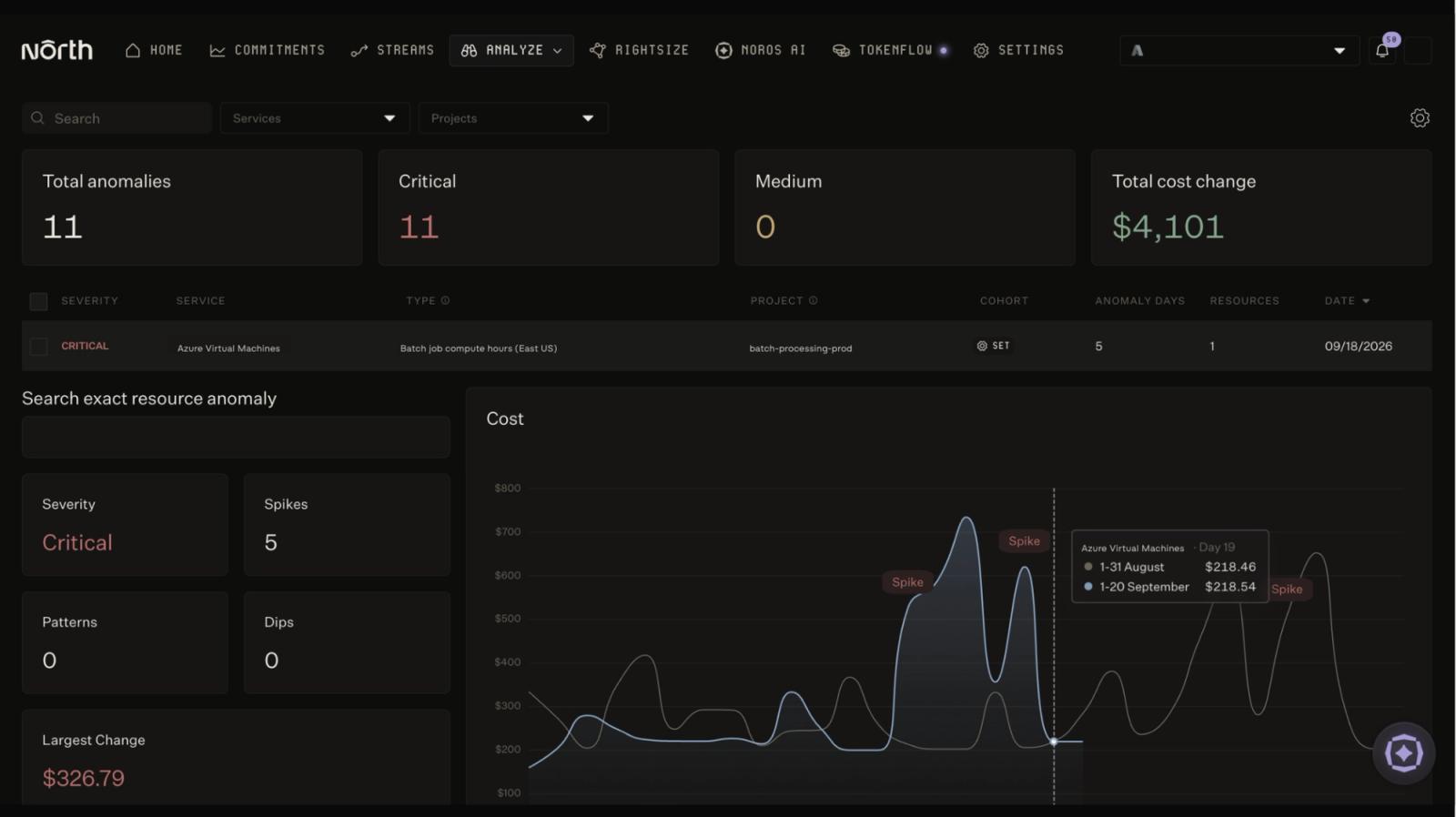
North's Anomalies flags a critical spend spike in Azure Virtual Machines within minutes, showing the exact resource, cost impact, and spike pattern.
With that detail, the team knows within minutes whether the spike needs action.
Wednesday: Unallocated spend gets assigned without a tagging cleanup
Earlier in the week, the team centralized spend across its Azure subscriptions. The total is now visible, but some shared services still sit in an unallocated bucket because the tags don’t reflect who uses them.
Under a manual process, finance and engineering would need to reconcile exports, ownership rules, and incomplete metadata before assigning those costs.
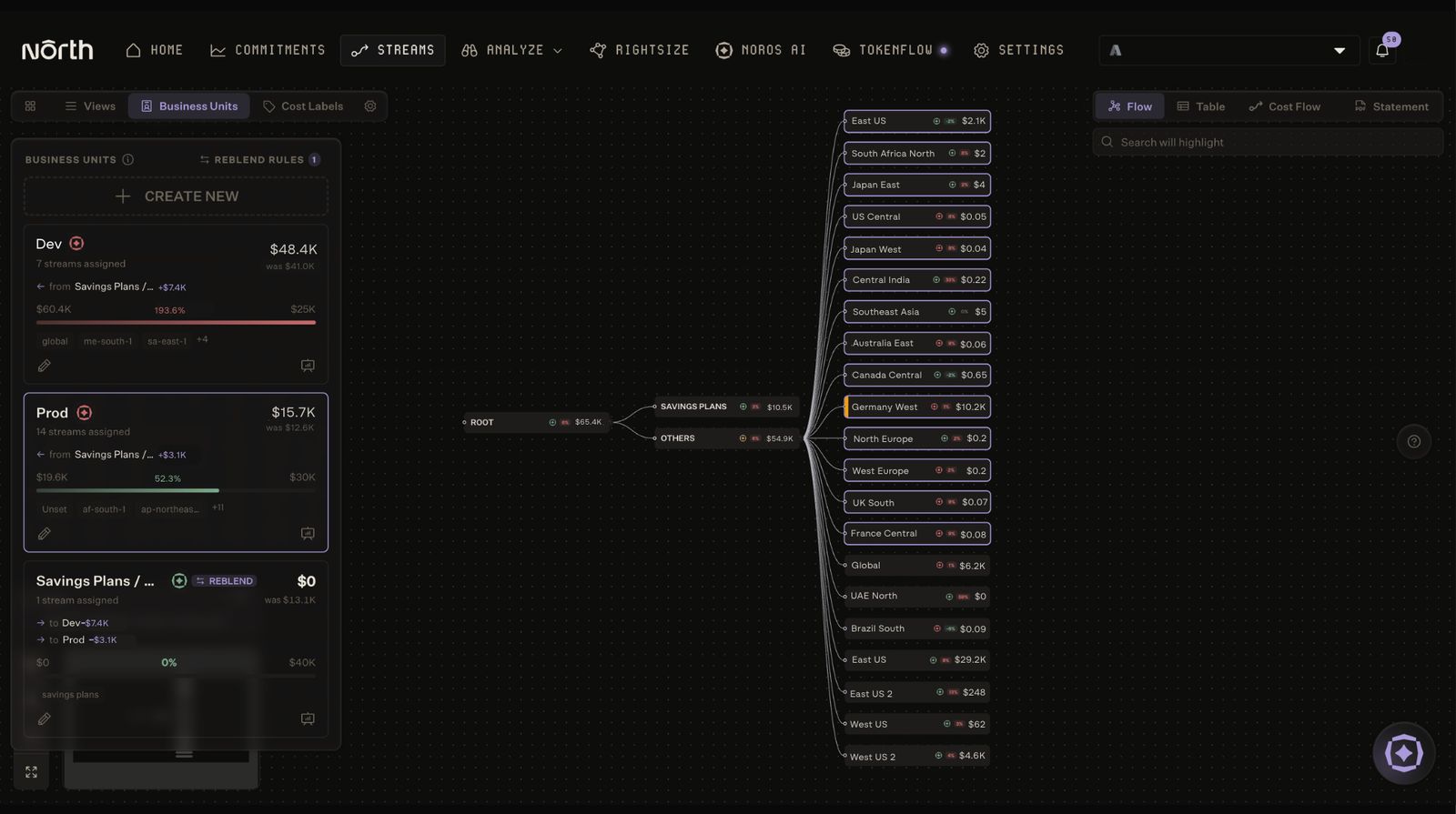
North's Coststreams allocates shared Azure spend across Dev and Prod business units without requiring a tagging cleanup.
With North's Coststreams, spend gets organized around how the business operates, and tagging isn't required to make that happen. Teams can:
- Group spend by team, project, environment, or customer
- Split shared costs proportionally based on usage
- Assign budgets to the groups responsible for that spend
- Generate showback statements without rebuilding the data in spreadsheets
As infrastructure and ownership change, the groupings update with them, so the allocation stays accurate without a full tagging cleanup.
Friday: Commitment coverage adjusts to match usage that's already shifted
By Friday, usage across a set of VMs has grown beyond current coverage. The team hasn't revisited its commitment mix since the workload shifted.
Under a manual process, someone would need to notice the gap, then decide how much new coverage to buy and for how long.
Autobot, North's autonomous commitment laddering engine, closes that gap on its own. It uses machine learning to evaluate:
- Usage patterns
- Renewal windows
- Projected demand
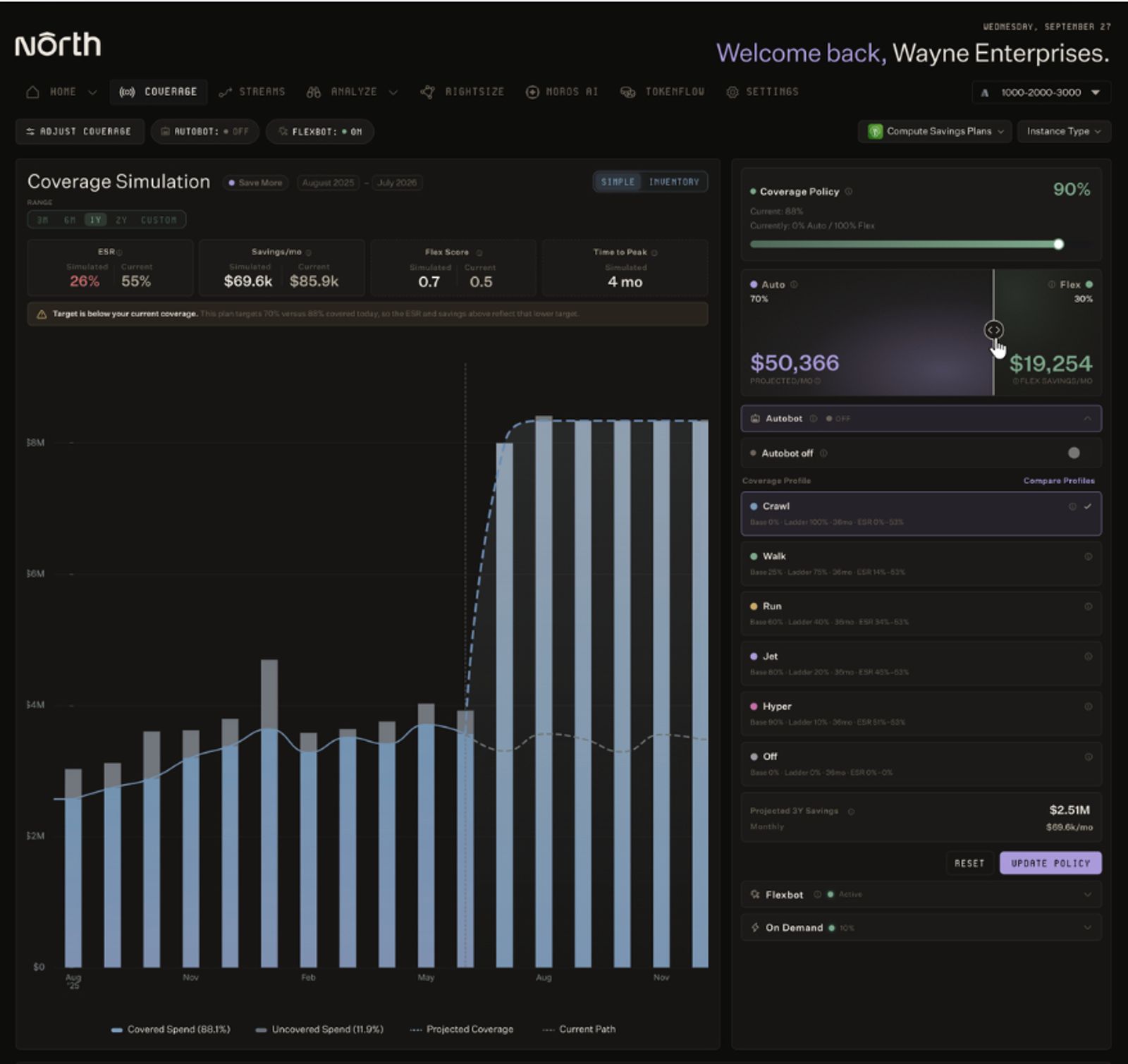
North's Autobot automatically builds commitment coverage in monthly increments as usage and demand shift.
From there, Autobot can purchase, renew, scale, or reduce commitments as needs change over time. Instead of one large upfront decision, it builds coverage in smaller monthly increments, adding coverage based on recent usage and projected demand, then continuing to adjust as those patterns shift.
What ties it together
None of these moments required a custom dashboard, a quarterly reminder, or someone noticing the problem weeks later.
Even so, questions come up that go beyond what an alert or a dashboard can answer on its own. That's where Noros, North's AI copilot, comes in. It works across each product and answers questions such as:
- “What has changed about this job since last week?”
- “Which teams drove the increase in shared costs?”
- “How much has Autobot saved this month?”
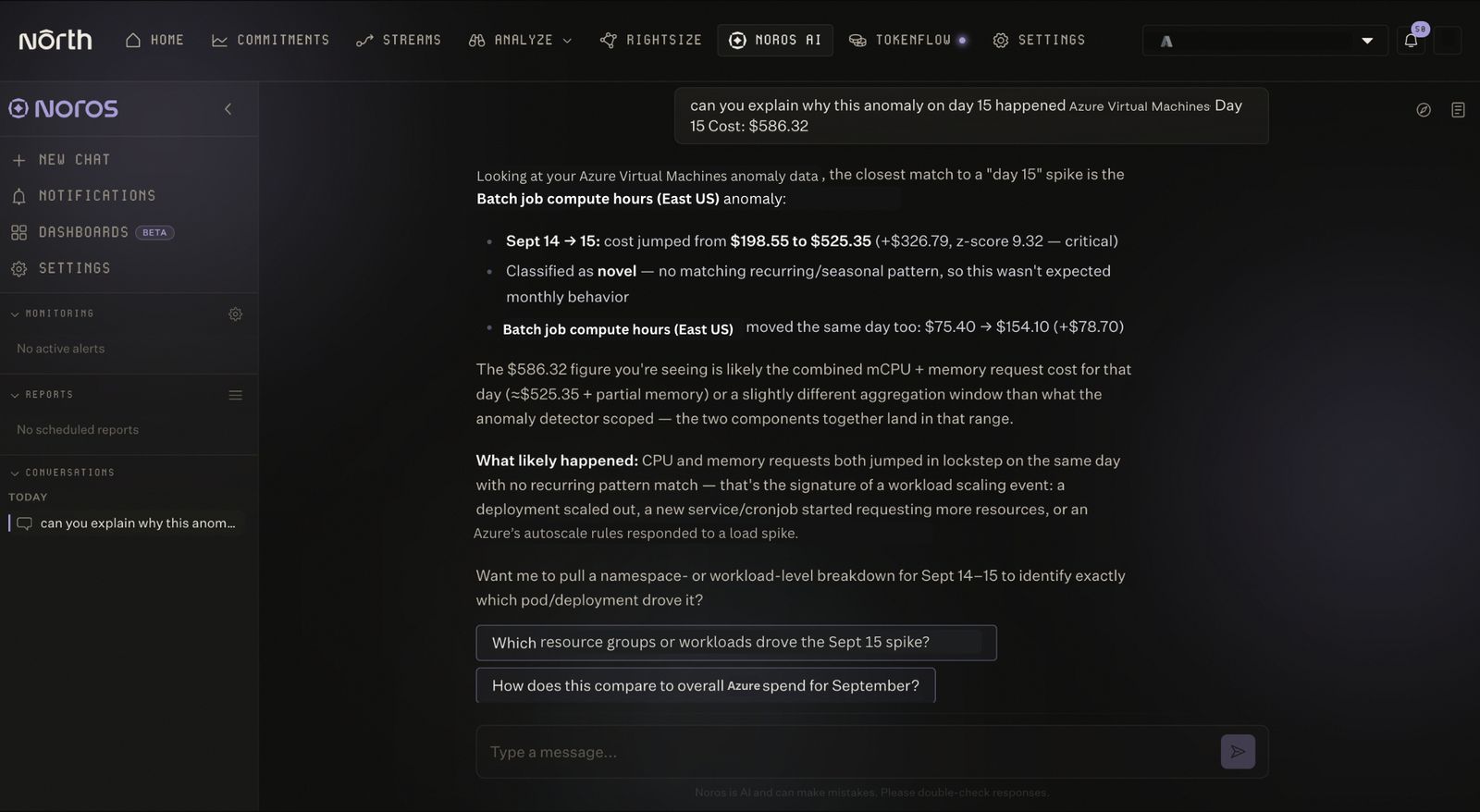
Noros, North's AI copilot, explains the root cause of a batch job cost spike in plain language.
Noros answers in plain language without requiring a new report or another dashboard.
For multi-cloud teams, the same workflow can also extend across AWS and GCP.
Get your Azure spend under control with North
Visibility, efficiency, rate optimization, and governance work best together. Progress in even one or two areas can begin reducing Azure spend.
The gap is rarely knowing what to do. It is usually getting the first step in place:
- A commitment strategy aligned to stable usage
- A tag policy enforced at deployment
- A shutdown schedule for non-production resources
Each step makes the next one easier.
This guide covered how to manage all four layers with Azure’s native tools. Keeping them running as usage changes is where North comes in.
Explore our free tier to see how North can support your Azure environment.
FAQS
Answers to common questions about the product or feature covered in this post.
What is the difference between Azure Reservations and Savings Plans?
Azure Reservations provide discounts of up to 72% for matching resources under one- or three-year terms. They work best for stable workloads with predictable configurations.
Savings Plans commit you to fixed hourly spend instead. They apply across a broader range of eligible compute services and offer savings of up to 65%. That broader coverage provides more flexibility when usage shifts across services, regions, or virtual machine types.
How much can you save with Azure Hybrid Benefit?
Savings depend on the license, service, region, and deployment. Eligible Windows Server and SQL Server licenses can reduce the software portion of Azure costs. Higher combined savings may be available when Azure Hybrid Benefit is paired with reservations.
Which Azure cost optimization tools are available at no additional charge?
Microsoft Cost Management and Billing features are available at no additional charge for Azure subscriptions. Azure Advisor is also free for Azure resources.
Azure Monitor has both free and paid components. Standard resource metrics do not carry a charge, but log ingestion, retention, custom metrics, and some alerts can generate costs.
Why does my Azure bill keep growing when usage feels flat?
A flat compute usage number doesn't mean nothing else is changing. Several other factors can drive costs up quietly, including:
- Non-production resources running outside working hours
- Unattached disks, unused public IPs, and other orphaned resources
- Storage growth from logs, backups, and snapshots
- Higher-cost storage tiers applied to inactive data
- Commitments that no longer match current usage
- Licensing benefits that have not been applied
- Data transfer or managed-service charges growing outside compute
Review costs by service, subscription, resource group, and owner before assuming compute usage is the cause. For questions like these, it can be helpful to ask Noros, North's AI FinOps agent, directly. It answers in plain language, with the root cause and next steps included.
How often should Azure costs be reviewed?
Review frequency should reflect how quickly the environment changes. Fast-growing environments may need weekly anomaly and rightsizing checks, while slower environments can use a longer cadence.
Commitment coverage, tag quality, orphaned resources, and storage lifecycle policies should also be reviewed regularly. The goal is to catch drift before it becomes a larger cleanup project.
Should I buy Azure Reservations or rightsize first?
Rightsize first whenever possible. A reservation based on an oversized or short-lived workload can leave part of the commitment unused.
Use recent performance data to confirm the workload’s baseline. Then commit only the portion of usage expected to remain stable throughout the term.
How can I fix inconsistent Azure tagging?
Start by defining required tags and enforcing them through Azure Policy, so new resources can't be provisioned without them. That stops the problem from growing, but it doesn't fix spend that's already unallocated because of past gaps in tagging.
North's Coststreams solves that by attributing already-unallocated spend without waiting on a retag, using infrastructure and billing context beyond tags, such as resource metadata, region, and account structure. Teams can group that spend by team, project, environment, or customer, and split shared costs proportionally based on usage.
That means cost visibility doesn't have to wait on a complete retag. Tags become one input among several, rather than the only way to assign spend to the right owner.
How do I catch an Azure cost spike before it shows up on the monthly bill?
Set budget alerts in Azure Cost Management to flag spend that crosses a threshold. That helps, but alerts still depend on someone checking them regularly, and a spike can sit unnoticed for days if that check gets missed.
North's Anomalies feature closes that gap by flagging spend changes as they happen, rather than waiting for a scheduled review. Each alert identifies which resource is driving the change, what changed about it, and how much the change increased spend.
That level of detail means a spike gets investigated the same day it happens, instead of surfacing weeks later in a monthly report.
How does North help manage Azure commitments as usage changes?
Autobot, North's autonomous commitment laddering engine, evaluates usage patterns, renewal windows, and projected demand for customer-owned commitments. It builds coverage in smaller monthly increments instead of one large upfront purchase, then adjusts that coverage automatically as usage shifts.